 ClipDesk
Docs
How to use ClipDesk
ClipDesk turns a long video into vertical Shorts with captions, a hook, a title and hashtags, then posts them on a schedule. This page shows how to use it, and exactly what you get with an AI and without one.
Quick start
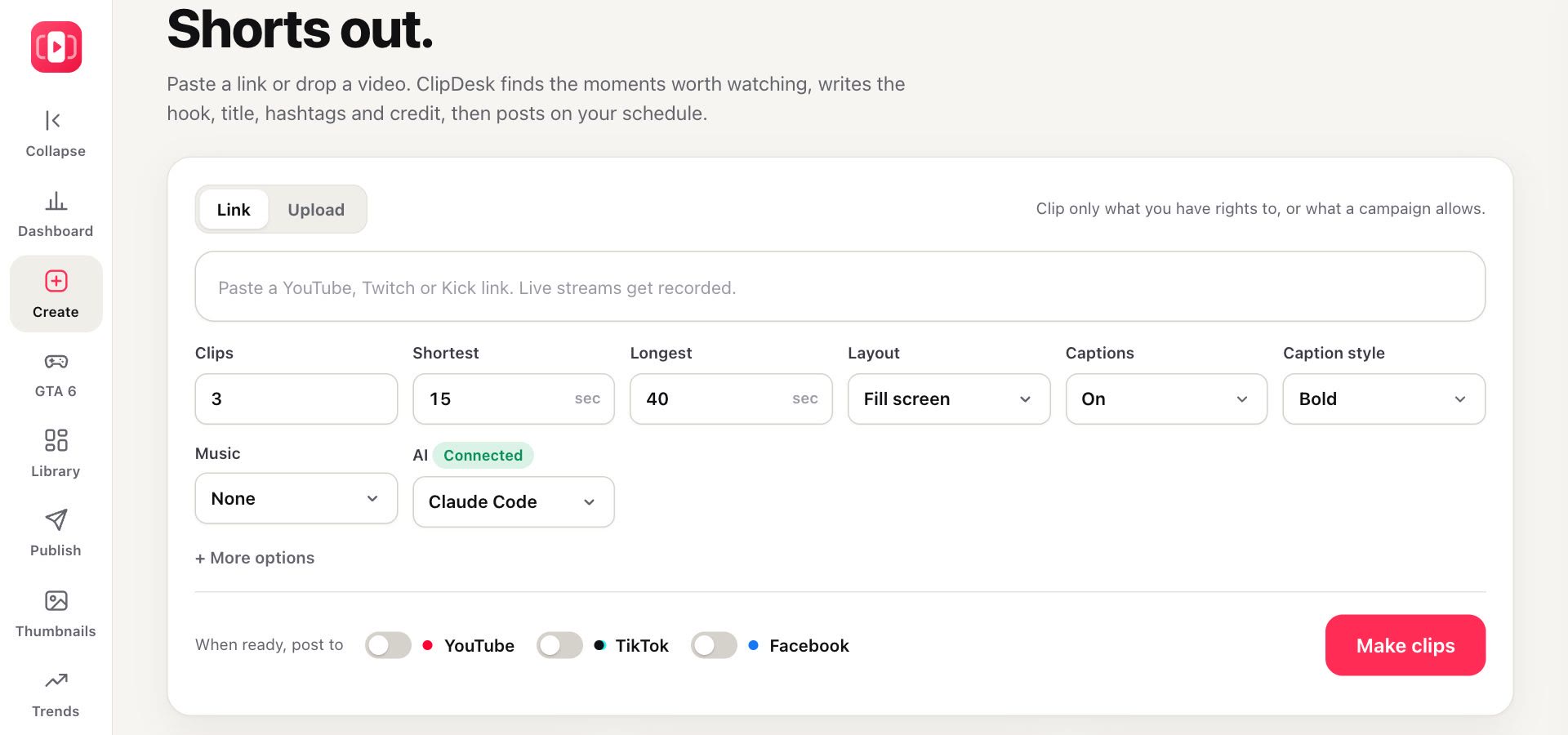
- Open Create and paste a link.A YouTube, Twitch or Kick link, or upload a video file. A live stream is recorded for the minutes you set.
- Pick the kind of job."Clips" for a stream, podcast or video, "Match highlights" for a cricket or football match, or "Movie / series" for a film or an episode.
- Set the basics.How many clips, the shortest and longest length, the layout, the captions and the caption style.
- Choose the AI, or "No AI".Pick the one whose key you saved under Setup: Claude API, Gemini API, OpenAI API, or Custom API for any OpenAI-compatible API. "No AI (scores only)" always works.
- Press Make clips.ClipDesk downloads the video, transcribes it, finds the moments, picks the clips and renders them. The Library shows the progress.
- Review and post.Open the job, play each clip, edit the cut or the text, then queue it for YouTube, TikTok or Facebook Reels.
Can I use ClipDesk without AI?
Yes. ClipDesk makes finished, captioned, postable clips with no Claude, no Gemini and no GPT. No large language model is called at any step.
On clipdesk.tech, clips count against your plan by how they were picked. The 7-day free trial gives 10 clips without AI and 20 with your own AI key. The Own key plan ($5 a month) gives 50 clips a month without AI and unlimited clips with your own AI key. The Plan page shows what you have used and what is left.
What "no AI" still uses
Two small tools that run inside ClipDesk and need no account: a speech model (whisper) that turns speech into the words for captions, and a formula that scores each second of the video. Neither is a chatbot and neither sends your video anywhere.
What "AI" means here
A large language model you reach with your own API key: Claude, Gemini, GPT or another. ClipDesk asks it to read the transcript, look at frames and choose and write the clips. ClipDesk has no AI account of its own: the provider bills your key for what your clips use.
https:// base address, your key and the model's name). Paste the key, pick a model that can read images and press "Test connection". Each account uses only its own keys, and a chat subscription such as Claude Pro or ChatGPT Plus is not an API key. Without a key, clips use the no-AI path described below.With AI and without, side by side
Both paths share the first three steps and the last one. They differ in who picks the clips and who writes the words.
- 1. Get the video
- 2. Transcribe the speech
- 3. Score every second
- 4. Take the highest-scoring moments
- 5. Use the clip's opening words as the hook
- 6. Render with captions, effects, music
- 1. Get the video
- 2. Transcribe the speech
- 3. Score every second
- 4. The AI reads what is said and looks at the best moments
- 5. It chooses the clips and writes the hook, title, description and hashtags
- 6. Render with captions, effects, music
| What | Without AI | With AI (your own key) |
|---|---|---|
| Finding moments | Signals from the sound, the speech and how viewers reacted, such as the parts replayed most. | The same signals, then the AI reads what is said and looks at the picture before choosing. |
| Where a clip starts and ends | Around the strongest moment, trimmed so no word is cut. | Starts just before the line that hooks, ends on the payoff, never mid-sentence. |
| Hook on screen | The clip's opening words. | A short written hook: a question or a claim the clip delivers. |
| Title | The hook plus the video's title. | Specific, searchable, and short enough for every platform. |
| Description | One fixed sentence naming the video, and a general question. | One or two sentences on what happens, ending with a question for comments. |
| Hashtags | The topic from the title and #shorts. | A few relevant tags, using what people are searching for now. |
| Layout | The one you choose: full screen or blurred frame. "Auto" becomes full screen. | Chosen per clip. The AI also finds a streamer's webcam, so the webcam can sit above the gameplay. |
| Score | One score for the moment's energy. | Four marks out of 100 (hook, payoff, clarity, action) and a total. |
| Voiceover | No spoken line (there is no written line to read). | The AI writes one line in the voice's language and the voice reads it. |
| Match highlights (events, review, reel and Shorts) | Yes, all of it. No AI is used. | The same. |
| Movie / series scene Shorts | The film look and whole-scene cuts. Scenes are picked by energy; the line above the picture is the title you type or the video's title. | The AI picks complete scenes by what is said, avoids giving away the ending, and writes the line above the picture when you leave the title empty. |
| Captions | Yes | Yes |
| Zoom-ins, sound effects, music | Yes | Yes |
| Thumbnails and the thumbnail generator | Yes | Yes |
| Editing a clip's cut and text | Yes | Yes |
| Posting by script or YouTube API, on a schedule | Yes | Yes |
| Trends, Shorts and niche rankings | Yes | Yes, plus "AI picks": the AI chooses what to clip next. |
| Campaign briefs | You type the rules. | The AI can read a pasted brief and fill the rules in. |
| Posting | Yes | The same. Posting needs no AI. |
| Time and cost | Fastest. Nothing to sign in to. | A minute or two longer per job. Your key's provider bills you for the AI. |
What you can do without AI
- Make clips from a YouTube, Twitch or Kick link, an uploaded file, or a live stream.
- Get word-by-word captions in four styles or film subtitles, in the language spoken, or translated to English.
- Choose the number of clips, their length, and a full-screen, blurred or film (black bars) layout.
- Turn a cricket or football match into a highlights reel and Shorts, with a review of every event first.
- Make scene Shorts from a film or an episode, in the film look.
- Add zoom-ins on loud moments, sound effects, a beat, or a free credited music track.
- Edit any clip: move the start and end, change the hook, title, description and hashtags.
- Make six thumbnail styles per clip, vertical and wide, with your own words.
- Post to YouTube, TikTok and Facebook Reels on a schedule, with the credit comment.
- See what is trending: videos, Shorts and niches, ranked.
- Track your usage on the Dashboard.
What to expect: the clips are cut at the most energetic and most watched moments, and their text is plain. Plan to rewrite the hook and title yourself on the clips you post.
What AI adds
- Better picks. It chooses by what is said and shown, not only by how loud it is, so quiet but strong moments are found and loud empty ones are skipped.
- Written hook, title, description, hashtags and comment question for each clip, ready to post.
- Webcam over gameplay. It finds the streamer's webcam in the frame, so stream clips show the face on top and the game below.
- Four marks per clip, so you can see whether the hook or the payoff is the weak part.
- A voiceover line written in the language of the voice you chose.
- AI picks in Trends and reading of campaign briefs.
Turning AI on or off
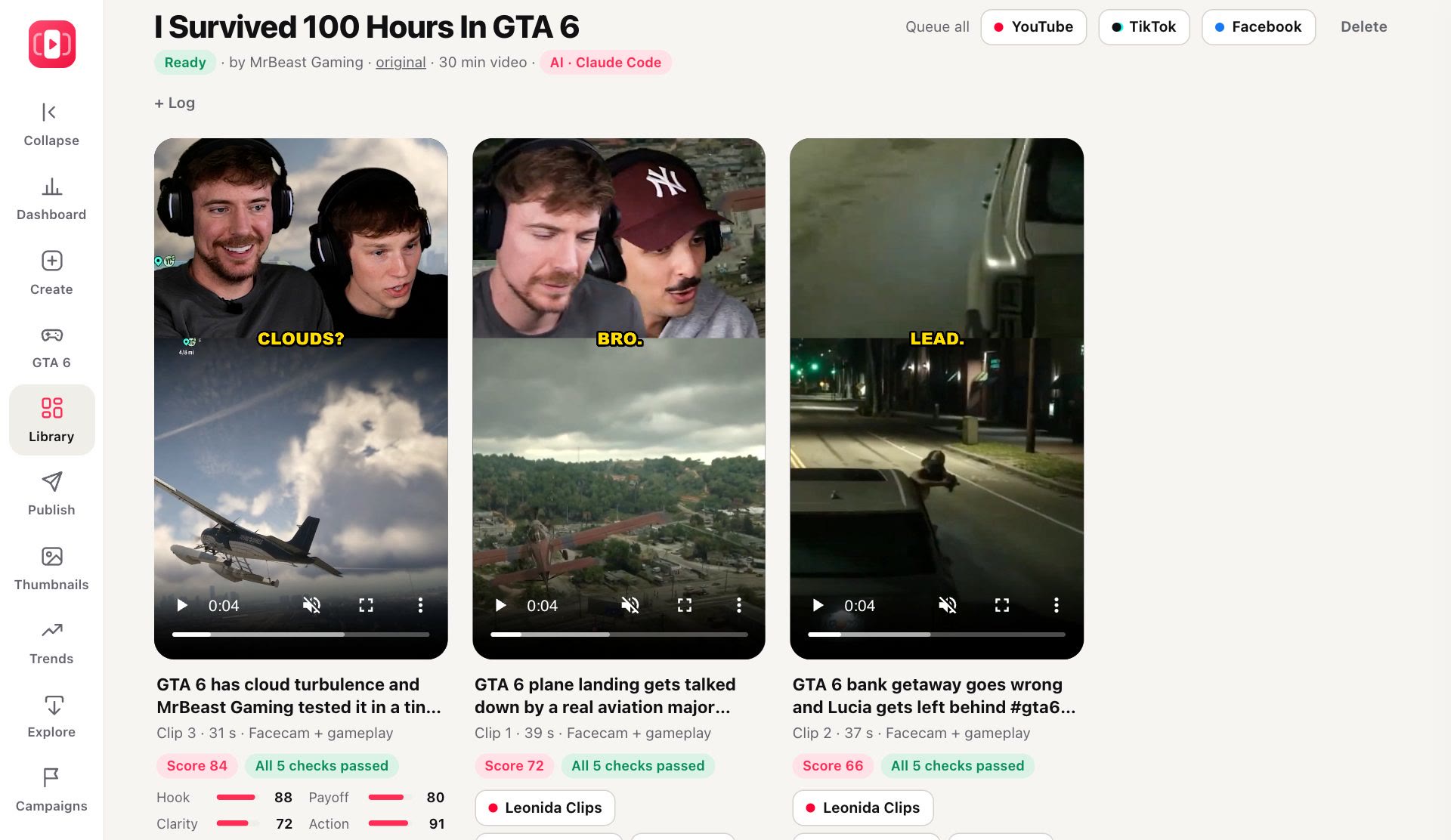
- Connect it once. On Setup, under AI, save your key and pick a model. Create then shows a green "Set up" badge beside the AI choice.
- Choose per job. On Create, the AI choice lists the providers and "No AI (scores only)".
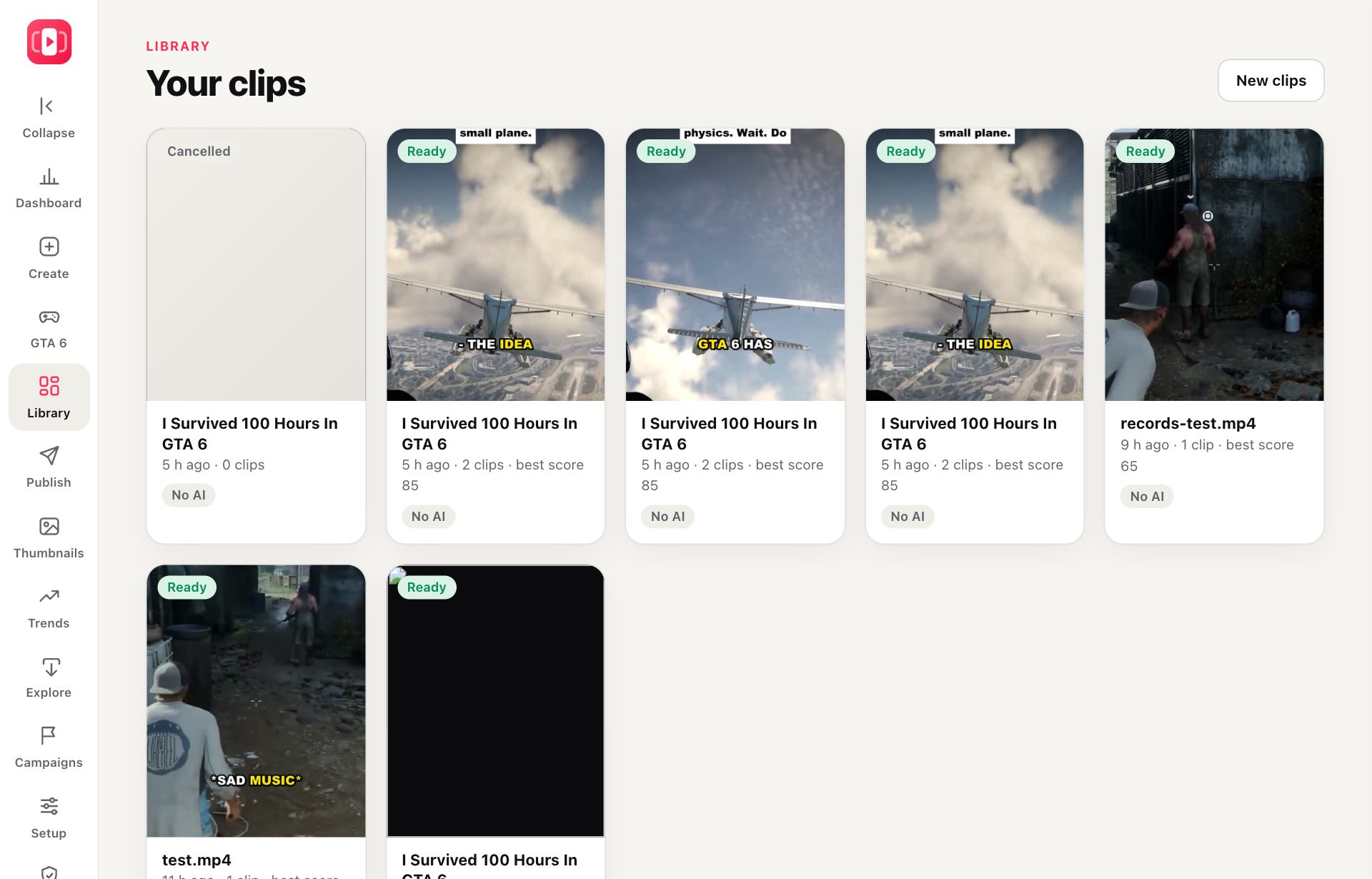
- Check what was used. Every card in the Library carries a pill: AI · Claude API No AI or, when the AI did not answer and the formula took over, "failed · no AI used".
How clips are scored
With AI: four marks
The AI marks each clip from 0 to 100 on four things and ClipDesk combines them into one score. The hook and the payoff count the most.
- Hook: do the first two seconds stop the scroll?
- Payoff: does the clip deliver what the hook promises, and end cleanly?
- Action: movement, reactions or change on screen.
- Clarity: can someone who never saw the source follow it?
90 and up is among the best Shorts of its kind, 70 is solid, 50 is watchable, under 40 is weak. A low score usually means the source had no strong moment, not that the cut is wrong.
Without AI: an energy score
Without an AI the score reflects how energetic and how watched the moment is. It measures energy, not story, so it stays in a narrower range and does not reach the top marks an AI can give.
Match highlights
For a cricket or football match. Instead of quotable moments, ClipDesk looks for the match's events: goals, wickets, sixes and the moments the crowd reacted to. It needs no AI.
- Choose "Match highlights" on Create.Paste the match link or upload the recording. Pick the sport or leave it on Auto-detect.
- Choose what to make.A reel (one wide video in match order), Shorts (one vertical clip per event), or both, and the reel's length: 3, 5 or 10 minutes.
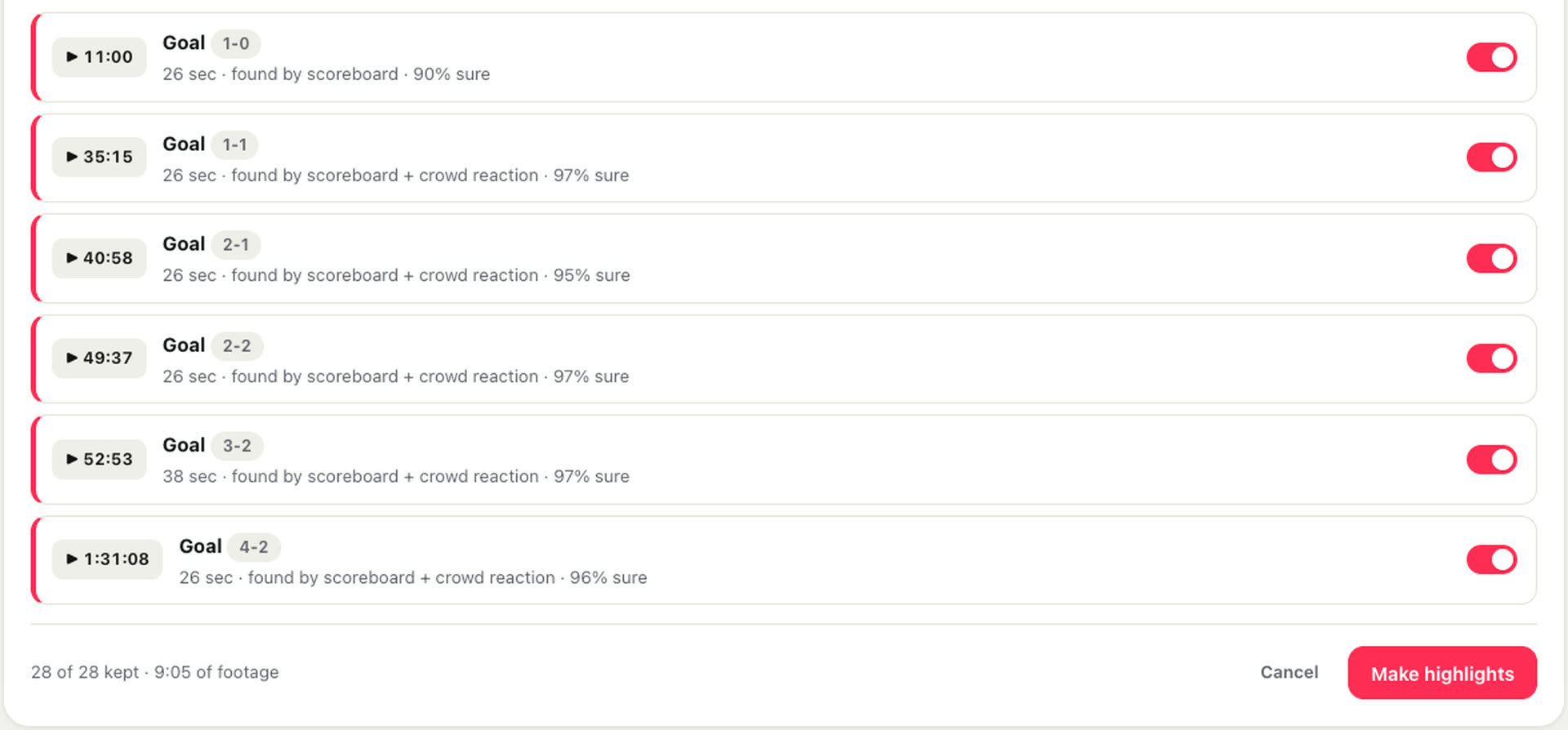
- Review the events.The job stops and lists every event with its match time, its score when the scoreboard was read, and how it was found. Play a row to check it, then switch it off, rename it (a "Big moment" that was really a goal), or move its start and end. Missed one? Move the player to it and press "Add an event".
- Press Make highlights.The reel and the Shorts appear on the job page. Download the reel from there.
A live match is followed while it is played. Paste the link of a stream that is live, choose "Match highlights", and set how many minutes to follow under "More options" (Live recording). Events appear on the job page under "Found so far", each with its Short a few minutes after it happens, and the reel is made when the recording ends. A live job has no review step.
How events are found
- The scoreboard. When the picture shows one, ClipDesk reads it through the match. A change in the score is a goal or a wicket for certain, and the event carries the new score ("Goal 2-1").
- The crowd. A roar that lasts marks a big moment. Bigger roars rank higher.
- The commentary. Words like "penalty" or "bowled" name what the crowd reacted to.
- Replays. When the broadcast replays a moment, ClipDesk ranks that moment higher and lets its clip run on into the replay.
- Viewers. For a video that has been public for a while, the parts replayed most count too.
Good to know
- The reel always keeps every goal and wicket, even past the length you chose, then fills the rest with the strongest moments.
- Without a readable scoreboard, events still come from the crowd and the commentary, but most are named "Big moment" instead of "Goal".
- Scoreboard reading needs a small free tool, Tesseract, on the computer that runs ClipDesk (
brew install tesseracton a Mac). Without it the job tells you and carries on. - A video that is already a highlights package is loud from start to finish, so no separate events stand out. Use "Clips" for those.
- Football is the tested sport. Cricket scoreboards are read too (wickets, fours and sixes), but have had less testing on real matches.
- Commentary in English, Hindi or Nepali is understood for naming events. With any other language, or none, events still come from the scoreboard and the crowd.
- A full match takes a while: from a few minutes on a fast computer to half an hour on a small one.
- Rights. Broadcast sport is strictly protected. Use footage you own or are licensed to use, such as your own league's or club's recordings.
Movies and series
For a film or an episode. "Movie / series" on Create makes Shorts of whole scenes in the look films are posted in.
- The whole picture between black bars. Nothing is cropped or blurred.
- A title above the picture for the whole clip. Type it in "Title on screen" (the film's or the episode's name). Left empty, it is the AI's line, or the video's title when no AI is used.
- Film subtitles below the picture: one plain white subtitle per sentence, with no capitals and no highlighted word.
- Whole scenes. Clips run 30 to 90 seconds by default, and each cut moves to the nearest change of shot so a scene does not open or close mid-line.
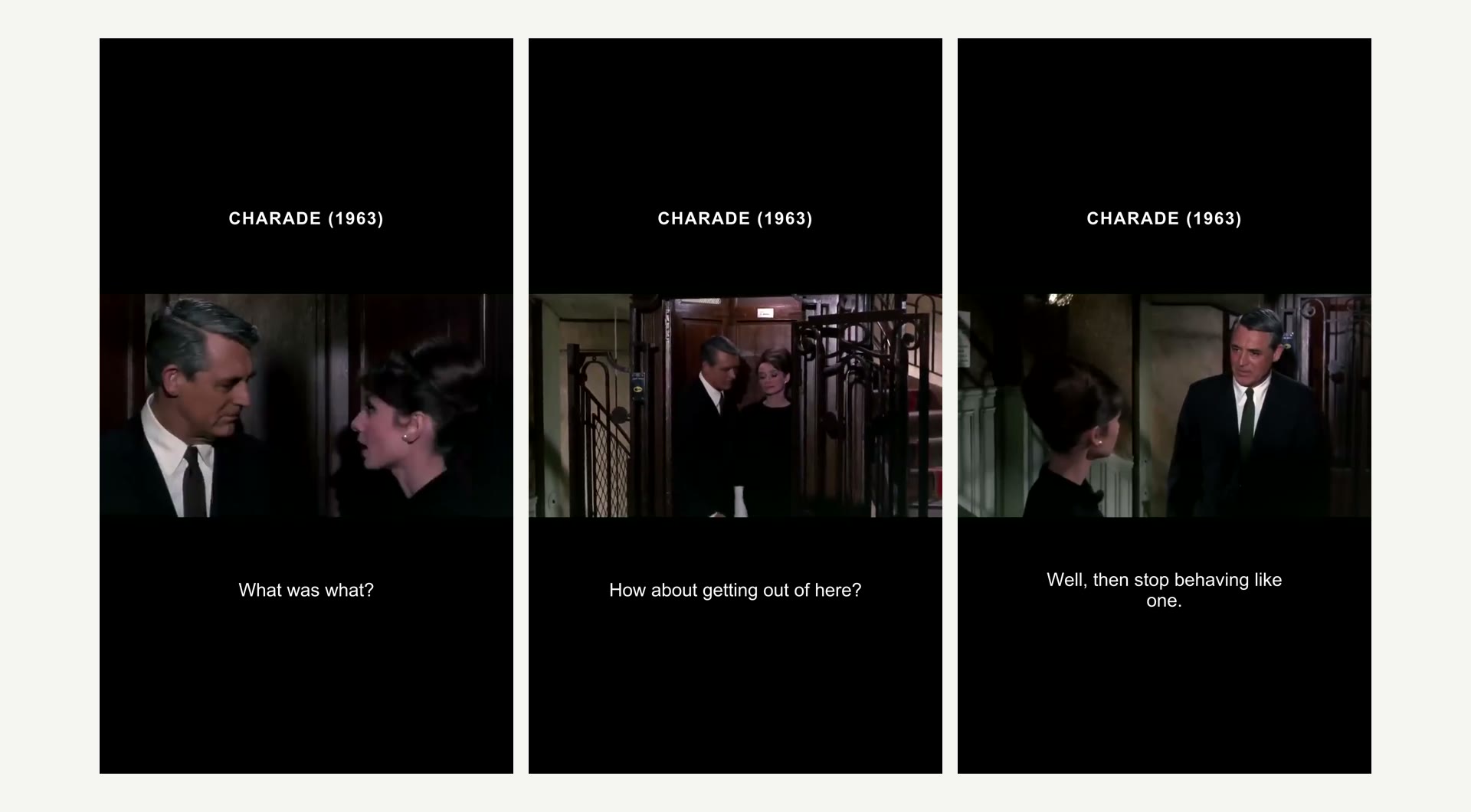
The film layout and the film subtitle style can also be chosen for any clip, on Create or in the clip editor.
Thumbnails
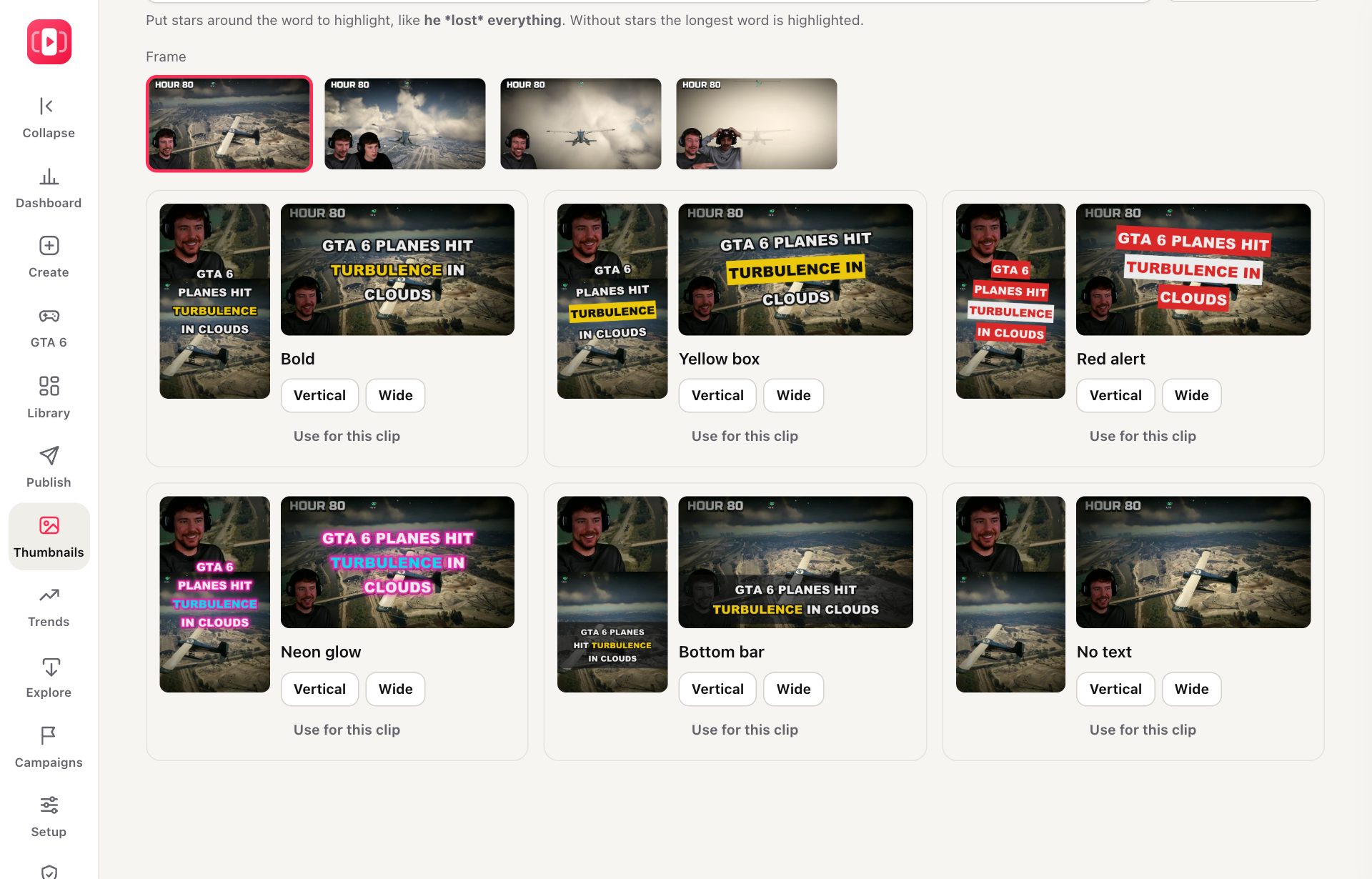
The Thumbnails page makes six styles for any clip: Bold, Yellow box, Red alert, Neon glow, Bottom bar and No text. Each comes as a vertical picture for Shorts, TikTok and Reels and a wide one for YouTube. Frames are taken from the clip without its captions.
- Type the words (two to five work best). Put stars around the word to highlight:
he *lost* everything. - Pick one of four frames, then download a picture or press "Use for this clip".
Captions and voices
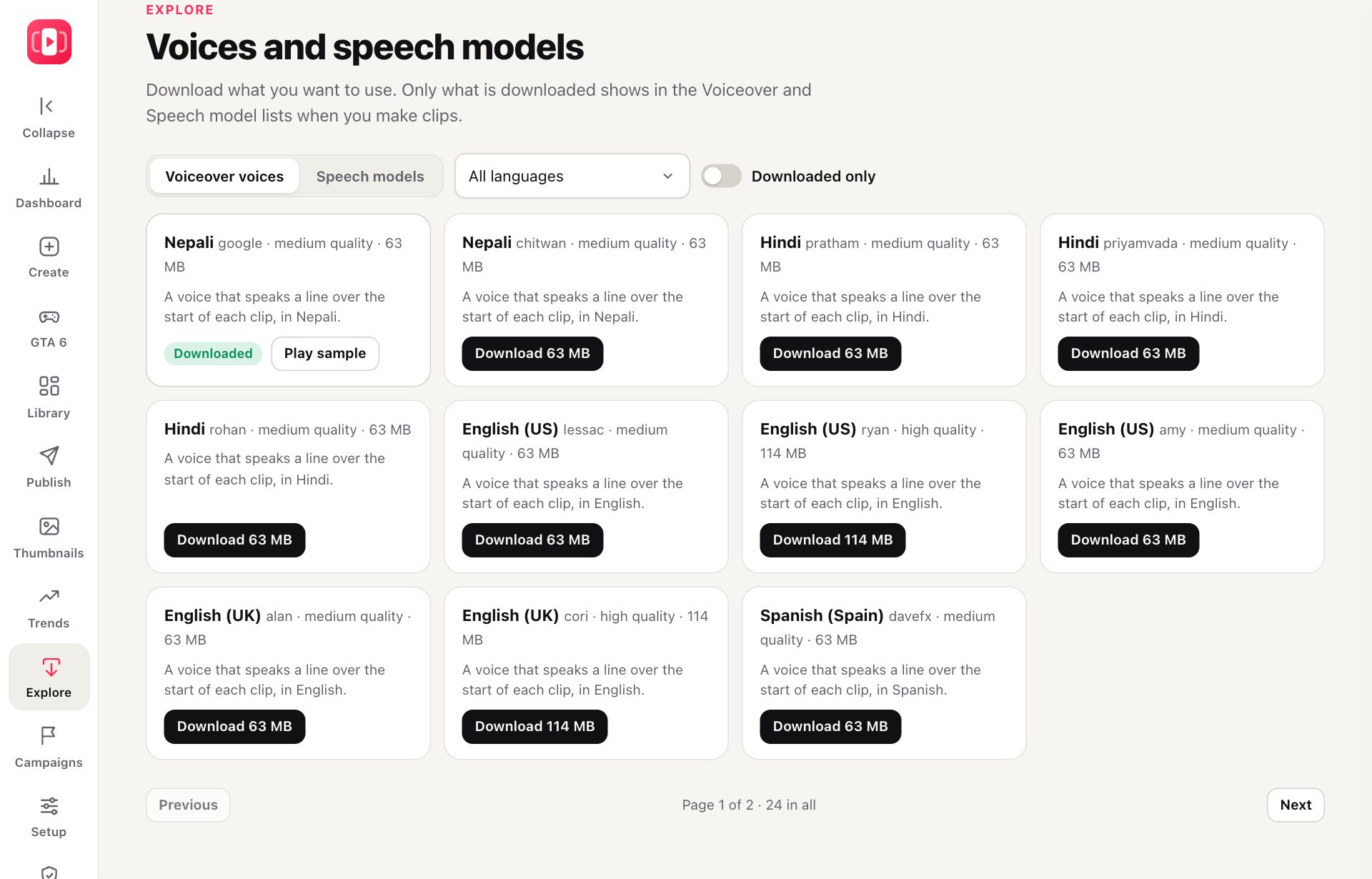
The Explore page lists speech models and voiceover voices. Download the ones you want; only downloaded ones appear on Create. A larger speech model gives more accurate captions and takes longer. Voices cover many languages, and you can play a sample before choosing.
Posting
- Channels: add as many YouTube, TikTok and Facebook channels as you like on Publish.
- How it posts: by the YouTube API with your own Google project. An admin running their own ClipDesk can also post by a script in a signed-in browser. Neither needs an AI.
- Schedule: each channel has minutes between posts and a daily limit. Clips that fail a check are held back.
- By hand: "Post kit" gives the video and every piece of text with its own Copy button.
Questions
Does "No AI" send my video to anyone?
No. Transcription and scoring run on the computer where ClipDesk is installed.
Which AI should I choose?
Whichever provider you already have a key for: Claude API, Gemini API or OpenAI API. For another service, use "Custom API". All get the same instructions and the same marking scale.
Is my API key safe?
It is stored on the ClipDesk server for your account only and is never shown again: the page only ever sees its last four characters. You can remove it on Setup at any time, and revoke it in your Anthropic account (or with whichever service your custom API key came from).
My job says the AI failed. What happened?
The AI did not answer in time or returned nothing usable, so ClipDesk used the formula instead and still made the clips. Check the sign-in on Setup and make the clips again.
Why are my scores low even with an AI?
The marks describe the moments the source contains. Look at which mark is low: a weak hook can be fixed by editing the start of the clip; a weak payoff usually needs a different moment or a different source.
Why are my match events called "Big moment" and not "Goal"?
The scoreboard could not be read, so ClipDesk knows the crowd reacted but not why. Check that the picture shows a scoreboard and that Tesseract is installed. You can still keep or drop each event on the review list.
Do match highlights or movie Shorts need an AI?
No. Match highlights use no AI at all. Movie Shorts work without one; an AI chooses the scenes better and writes the line above the picture.
Can I use ClipDesk with no internet AI account at all?
Yes. Choose "No AI (scores only)". You only need the internet to download the video and to post.
Still stuck? Contact us.